Adobe After Effects Shortcut Keys – Complete List for Faster Editing
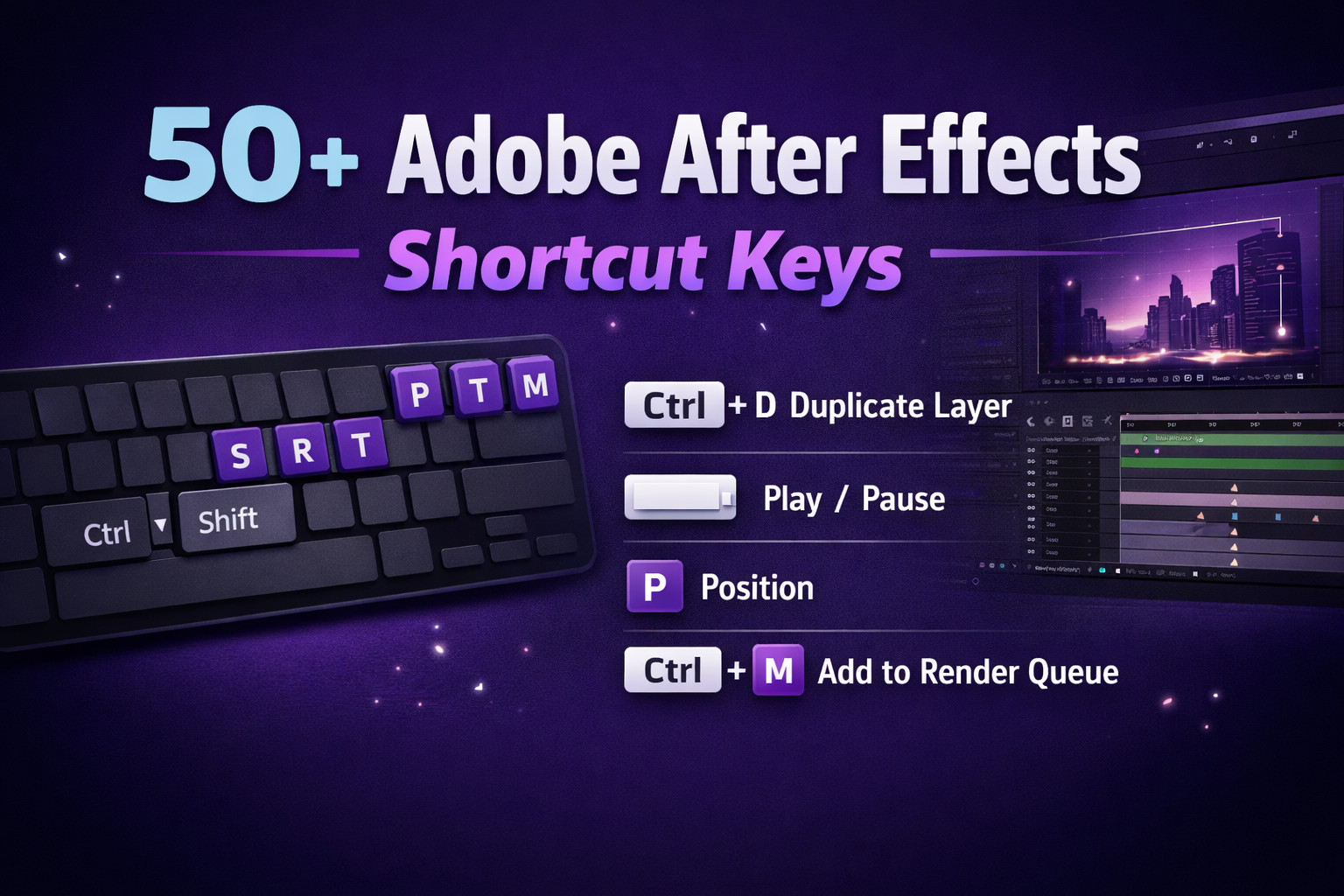
Adobe After Effects Shortcut Keys – Complete Guide to Work Faster (2026)
Adobe After Effects is one of the most powerful motion graphics and visual effects tools created by Adobe. Whether you are editing videos, creating motion graphics, or producing cinematic effects, knowing shortcut keys can significantly speed up your workflow.
Instead of navigating menus repeatedly, keyboard shortcuts allow you to edit faster, improve productivity, and focus more on creativity.
This guide covers the most useful Adobe After Effects shortcut keys every beginner and professional should know.
Why Learn Adobe After Effects Shortcuts?
Using shortcuts in After Effects provides several benefits:
- 🚀 Faster editing workflow
- 🎬 Improved motion graphics productivity
- ⏱ Saves time during complex projects
- 💡 Makes professional editing easier
- 📱 Efficient workflow on laptops and small screens
If you’re learning motion graphics, mastering shortcuts can reduce editing time by up to 40–60%.
For official documentation you can also explore:
- https://helpx.adobe.com/after-effects/using/keyboard-shortcuts-reference.html
- https://www.adobe.com/products/aftereffects.html
Essential Adobe After Effects Shortcut Keys
1. Layer Shortcuts
| Shortcut | Function |
|---|---|
| Ctrl + Y | Create New Solid Layer |
| Ctrl + Shift + Y | Solid Settings |
| Ctrl + Alt + Shift + Y | Null Object |
| Ctrl + D | Duplicate Layer |
| Ctrl + Shift + D | Split Layer |
| Ctrl + ] | Move Layer Up |
| Ctrl + [ | Move Layer Down |
These shortcuts help organize layers quickly while editing complex compositions.
Timeline Shortcuts
| Shortcut | Function |
|---|---|
| Spacebar | Play / Pause Preview |
| 0 (Numpad) | RAM Preview |
| Home | Go to Start of Timeline |
| End | Go to End of Timeline |
| Page Up | Move One Frame Back |
| Page Down | Move One Frame Forward |
These keys allow quick navigation in the timeline while editing animations.
Transform Property Shortcuts
| Shortcut | Function |
|---|---|
| P | Position |
| S | Scale |
| R | Rotation |
| T | Opacity |
| A | Anchor Point |
| U | Show Keyframes |
These are among the most frequently used shortcuts for animating objects in After Effects.
Composition Shortcuts
| Shortcut | Function |
|---|---|
| Ctrl + N | New Composition |
| Ctrl + K | Composition Settings |
| Ctrl + Alt + N | New Composition From Footage |
| Ctrl + Shift + C | Pre-compose Layer |
Using these shortcuts helps create and manage compositions faster.
Preview and Workspace Shortcuts
| Shortcut | Function |
|---|---|
| ` (Grave) | Maximize Panel |
| Ctrl + \ | Show Project Panel |
| Tab | Hide Panels |
| Ctrl + 0 | Fit Composition to Screen |
These shortcuts improve navigation inside the After Effects interface.
Rendering & Export Shortcuts
| Shortcut | Function |
|---|---|
| Ctrl + M | Add to Render Queue |
| Ctrl + Alt + M | Add to Adobe Media Encoder |
| Ctrl + Shift + / | Fit Layer to Composition |
Rendering shortcuts save time when exporting final projects.
Pro Tips for Working Faster in After Effects
✔ Customize shortcuts inside Edit → Keyboard Shortcuts
✔ Use U key to instantly reveal animated properties
✔ Use Pre-compose (Ctrl + Shift + C) to keep compositions organized
✔ Work with RAM Preview to test animation smoothly
Final Thoughts
Learning Adobe After Effects shortcut keys is one of the fastest ways to improve your motion graphics workflow. Whether you’re a beginner or professional editor, mastering these shortcuts will help you work faster, stay organized, and create stunning animations efficiently.