Master Substance 3D Painter Like a Pro: Guide to Shortcut Keys
Master Substance 3D Painter Like a Pro: The Ultimate Guide to Shortcut Keys
In the world of 3D texturing, speed and precision are everything. Constantly navigating menus, adjusting brush sizes, or switching tools breaks your creative
flow and pulls you out of the “zone.” Whether you’re a game developer texturing assets for AAA titles or a hobbyist bringing your 3D models to life, mastering Substance 3D Painter shortcut keys is the fastest way to supercharge your workflow .
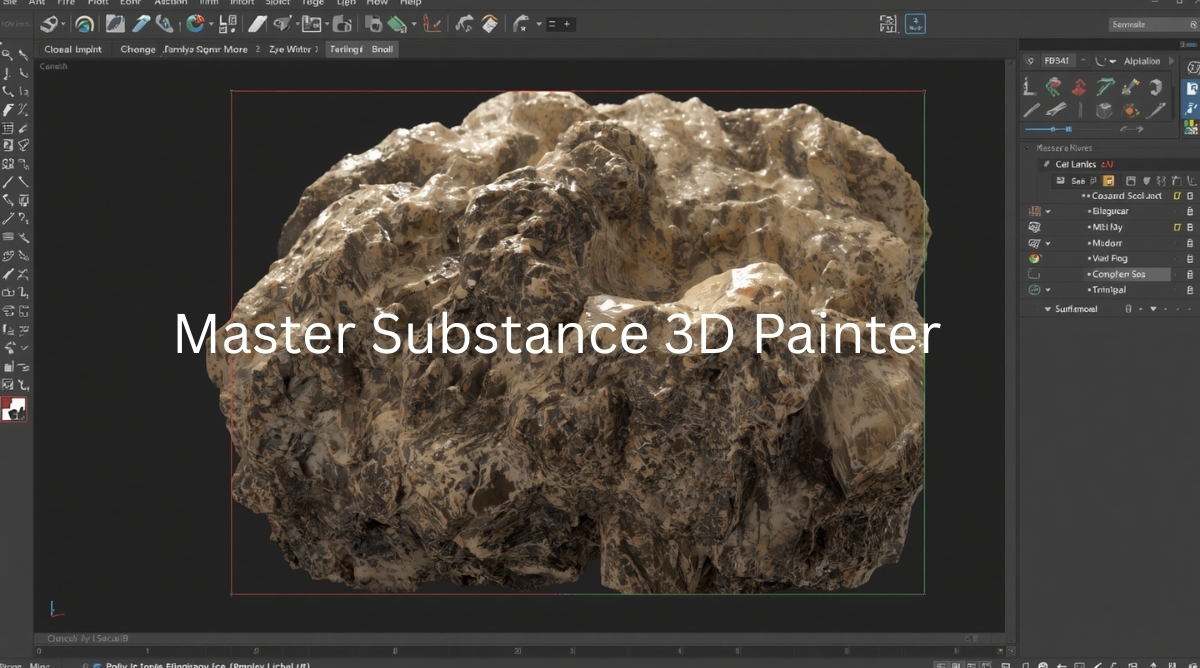
Substance 3D Painter has become the industry standard for 3D texture painting, offering powerful tools for PBR texturing, smart materials,
and real-time rendering. However, many artists only scratch the surface of what the software can do. By leveraging keyboard shortcuts and mouse combinations, you can keep your stylus on the model and let your non-drawing hand handle the technical heavy lifting .
Below, we have compiled the most comprehensive list of shortcuts based on the latest Substance 3D Painter updates. Keep this guide handy to transform your texturing workflow into a seamless, efficient process.
Why Use Shortcuts in Substance 3D Painter?
Using shortcuts isn’t just about looking like a pro—it’s about ergonomics, efficiency, and creative flow. Here’s why they matter:
- Faster Iteration: Quickly undo mistakes (Ctrl+Z) and redo (Ctrl+Y) without moving your hand from the mouse or tablet .
- Seamless Tool Switching: Instantly jump between Paint, Eraser, Projection, and Clone tools with single-key shortcuts .
- Precision Control: Adjust brush size, hardness, flow, and rotation dynamically while painting using modifier keys .
- Enhanced Navigation: Rotate, pan, and zoom around your 3D model effortlessly to inspect every angle .
- Professional Results: Access advanced features like symmetry, lazy mouse, and quick masks instantly to create polished textures .
Substance 3D Painter Shortcut Keys Master Tables
Note: For users on macOS, replace Ctrl with Command (⌘) and Alt with Option (⌥) .
General & File Shortcuts
These are the essential commands you’ll use every time you open Substance Painter.
Interface & Viewport Navigation
Navigating your 3D scene efficiently is crucial. These shortcuts keep your view fluid and flexible.
Tool & Brush Shortcuts (Essential for Artists)
These single-key shortcuts allow you to switch tools instantly and adjust brush parameters on the fly.
Layer & Mask Management
Layers and masks are the heart of non-destructive texturing. Master these shortcuts to organize your projects like a pro.
Display & View Modes
Quickly switch between different view modes to inspect your channels, mesh maps, and materials.
Manipulator & Transform
When working with fill layers, projections, or transforms, these shortcuts give you precise control.
Mode Switching
Substance Painter has dedicated modes for different stages of your workflow.
Pro Tips to Enhance Your Substance 3D Painter Workflow
While keyboard shortcuts are vital, combining them with Painter’s unique features can elevate your texturing to a professional level .
1. The Dynamic Brush Adjustment Trick
Don’t stop painting to adjust your brush. While using the Paint Tool (1) , hold Ctrl + Right Mouse and drag horizontally to change brush size, or vertically to change hardness . Similarly, Ctrl + Left Mouse adjusts flow (horizontally) and rotation (vertically) . This keeps your cursor on the model and your workflow uninterrupted.
2. Straight Lines and Precision Strokes
To paint perfectly straight lines, hold Shift while clicking and dragging with the Left Mouse button . For lines that snap to specific angles (like 45-degree increments), hold Ctrl + Shift while drawing . This is perfect for hard-surface detailing and mechanical parts.
3. Smart Material Application with Drag & Drop
When dragging a material or smart material from the Assets panel into the viewport, hold Ctrl while dropping . This allows you to apply the material only to a specific part of the 3D model (based on your selection), rather than the entire texture set. It’s a huge time-saver for complex assets.
4. Mastering the Quick Mask
The Quick Mask feature is perfect for temporary selections. Press U to enter Quick Mask edit mode, paint the area you want to protect or modify, and press U again to exit and convert it to a selection . Use I to invert the mask and Y to clear it. This is faster than creating a new layer mask for temporary adjustments.
5. Solo Channels for Inspection
Need to inspect just your roughness or height channel? Press C to cycle through the channels in solo mode . Press Shift + C to go backward. Press M to return to the full material view . This is essential for diagnosing PBR issues.
6. Stencil Manipulation Mastery
When using stencils (common in projection painting), use these shortcuts for precise control:
- Rotate Stencil: Hold S + Left Mouse drag .
- Snap Rotate: Hold Shift + S + Left Mouse .
- Translate Stencil: Hold S + Middle Mouse .
- Zoom Stencil: Hold S + Right Mouse .
Conclusion
Mastering these Substance 3D Painter shortcuts is the best investment you can make in your 3D texturing journey. By integrating these key combinations into your daily workflow, you free up mental space to focus on what truly matters: creating stunning, realistic materials and textures. Whether you’re texturing characters, props, or environments, these shortcuts are your toolkit for efficiency and professional-grade results .
Bookmark this page and practice a few new shortcuts each day. Soon, navigating Substance 3D Painter will become second nature, and your texturing speed will reach new heights.