Adobe Photoshop Shortcut Keys – Complete List for Faster Editing
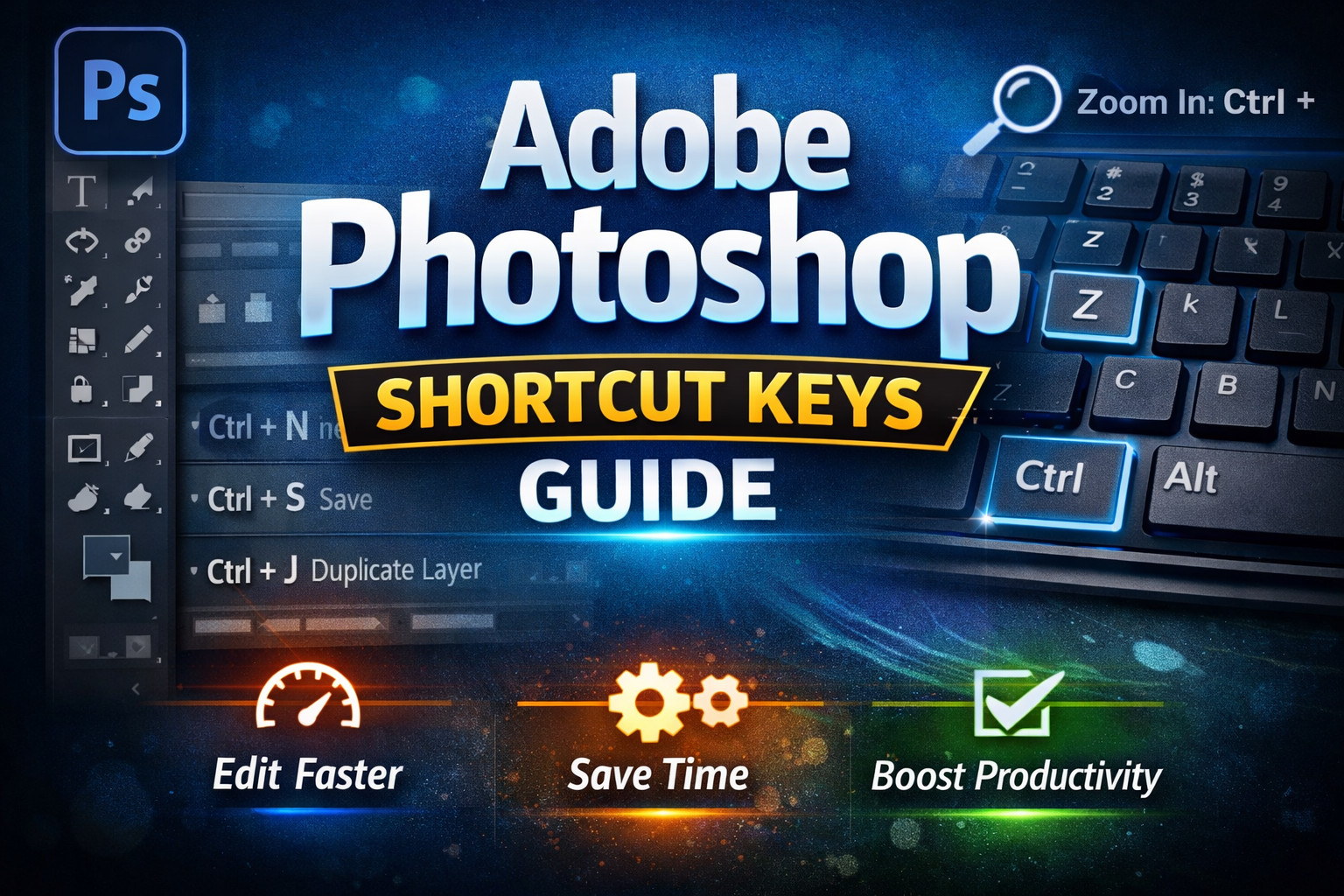
Adobe Photoshop Shortcut Keys (Complete Guide for Faster Editing)
Introduction
Adobe Photoshop is one of the most powerful image editing tools used by photographers, graphic designers, and digital artists worldwide. However, working only with menus can slow down your workflow. Learning Adobe Photoshop shortcut keys helps you edit images faster, save time, and improve productivity.
Shortcut keys allow users to perform tasks instantly without navigating through multiple menus. Whether you are cropping an image, selecting layers, zooming in, or applying transformations, keyboard shortcuts make everything quicker and smoother.
In this guide, you will discover the most useful Adobe Photoshop shortcut keys that every beginner and professional should know. These shortcuts are organized by category so they are easy to learn and remember.
Essential Adobe Photoshop Shortcut Keys
1. Basic Photoshop Shortcuts
| Function | Shortcut (Windows) |
|---|---|
| New File | Ctrl + N |
| Open File | Ctrl + O |
| Save File | Ctrl + S |
| Save As | Ctrl + Shift + S |
| Ctrl + P | |
| Undo | Ctrl + Z |
| Step Backward | Ctrl + Alt + Z |
| Redo | Ctrl + Shift + Z |
These shortcuts help you manage files and basic editing tasks quickly.
2. Selection Tool Shortcuts
| Tool | Shortcut |
|---|---|
| Move Tool | V |
| Marquee Tool | M |
| Lasso Tool | L |
| Magic Wand Tool | W |
| Quick Selection Tool | W |
| Select All | Ctrl + A |
| Deselect | Ctrl + D |
Selections are essential in Photoshop because they allow you to edit specific parts of an image.
3. Brush Tool Shortcuts
| Function | Shortcut |
|---|---|
| Brush Tool | B |
| Decrease Brush Size | [ |
| Increase Brush Size | ] |
| Hardness Decrease | Shift + [ |
| Hardness Increase | Shift + ] |
These shortcuts are extremely helpful for digital painting and retouching.
4. Layer Shortcuts
| Action | Shortcut |
|---|---|
| New Layer | Ctrl + Shift + N |
| Duplicate Layer | Ctrl + J |
| Merge Layers | Ctrl + E |
| Group Layers | Ctrl + G |
| Ungroup Layers | Ctrl + Shift + G |
| Delete Layer | Delete |
Layers are the foundation of Photoshop editing, so these shortcuts will significantly speed up your workflow.
5. Zoom and Navigation Shortcuts
| Action | Shortcut |
|---|---|
| Zoom In | Ctrl + + |
| Zoom Out | Ctrl + – |
| Hand Tool | H |
| Fit to Screen | Ctrl + 0 |
| 100% Zoom | Ctrl + 1 |
Navigation shortcuts allow you to move around your canvas smoothly.
Why Learn Photoshop Shortcuts?
Learning shortcut keys provides several advantages:
✔ Faster editing workflow
✔ Improved productivity
✔ Less reliance on menus
✔ Better control over tools
✔ Professional editing speed
Many professional designers rely heavily on shortcuts to complete complex tasks efficiently.
Useful Resources for Learning Photoshop
If you want to explore Photoshop in more detail, these resources are very helpful:
- Official Photoshop tutorials at Adobe: https://helpx.adobe.com/photoshop/tutorials.html
- Free design tutorials on Envato Tuts+: https://tutsplus.com
- Beginner guides from W3Schools: https://www.w3schools.com
These websites provide excellent tutorials and learning materials.
Conclusion
Mastering Adobe Photoshop shortcut keys is one of the easiest ways to improve your editing speed and efficiency. Instead of navigating through menus, you can perform tasks instantly using your keyboard.
Whether you are a beginner or a professional designer, practicing these shortcuts daily will make your workflow smoother and more productive.
Start learning these shortcuts today and take your Photoshop skills to the next level.adobe illustrator shortcut keys