Procreate Shortcut Keys
Procreate Shortcut Keys: Boost Your Digital Art Workflow
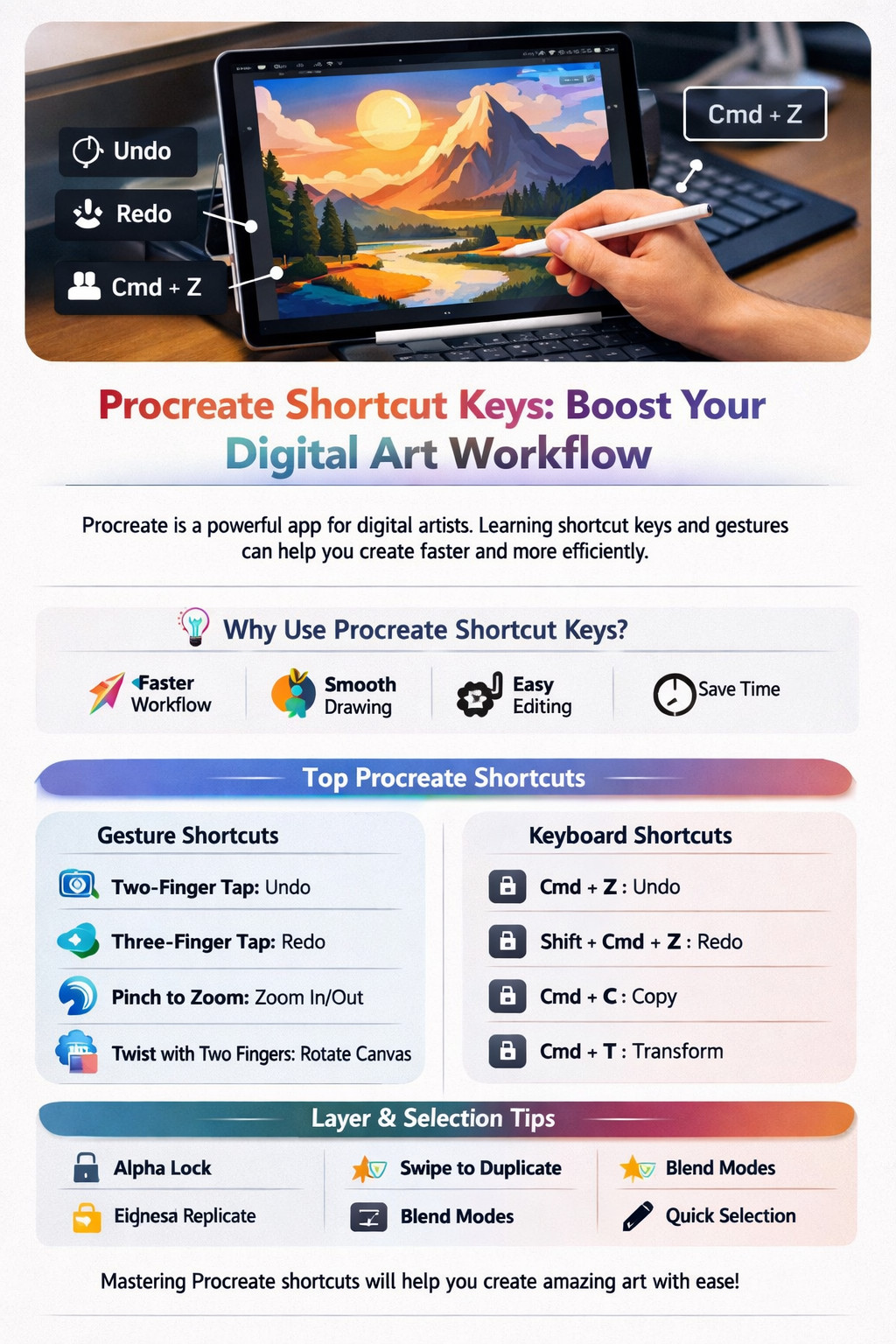
Procreate is one of the most popular digital illustration apps used by artists, designers, and content creators. Available on Procreate for Apple Inc. devices, it offers powerful tools for sketching, painting, and graphic design. Learning Procreate shortcut keys and gesture controls can dramatically improve your speed and workflow.
Whether you are creating digital paintings, social media graphics, concept art, or illustrations, mastering shortcuts helps you work faster and stay focused on creativity.
Why Use Procreate Shortcut Keys?
Shortcut keys and gestures in Procreate save time and reduce repetitive actions. Instead of navigating through menus, you can quickly perform actions using taps, swipes, and supported keyboard commands.
Benefits of Using Shortcuts
- Faster workflow
- Better productivity
- Smooth drawing experience
- Quick layer management
- Time-saving editing tools
- Improved focus while creating art
These shortcuts are especially useful for professional artists and beginners who want a faster design process.
Most Useful Procreate Shortcut Keys
Here are some of the most commonly used Procreate shortcuts and gestures:
- Two-finger tap – Undo last action
- Three-finger tap – Redo last action
- Pinch with two fingers – Zoom in and out
- Twist with two fingers – Rotate canvas
- Swipe down with three fingers – Copy and paste menu
- Hold touch – Color drop fill
These gesture shortcuts are used daily by most digital artists.
Keyboard Shortcuts for Procreate
If you use an external keyboard with your iPad, these shortcuts can improve efficiency:
- Cmd + Z – Undo
- Shift + Cmd + Z – Redo
- Cmd + C – Copy
- Cmd + V – Paste
- Cmd + T – Transform selected layer
- Cmd + S – Save project
Using a keyboard can speed up your professional workflow significantly.
Layer and Selection Shortcuts
Layer management is essential in Procreate. These quick actions help save time:
- Tap layer with two fingers – Alpha lock
- Swipe left on layer – Delete, duplicate, or lock
- Tap “N” on layer – Blend modes
- Selection tool – Quickly isolate areas
These shortcuts are perfect for detailed illustrations and editing tasks.
Final Thoughts
Learning Procreate shortcut keys is one of the best ways to improve your digital art speed and efficiency. These shortcuts make drawing, editing, and layer management much easier.
Whether you are a beginner or professional digital artist, using these commands daily will help you create artwork faster and with better control.