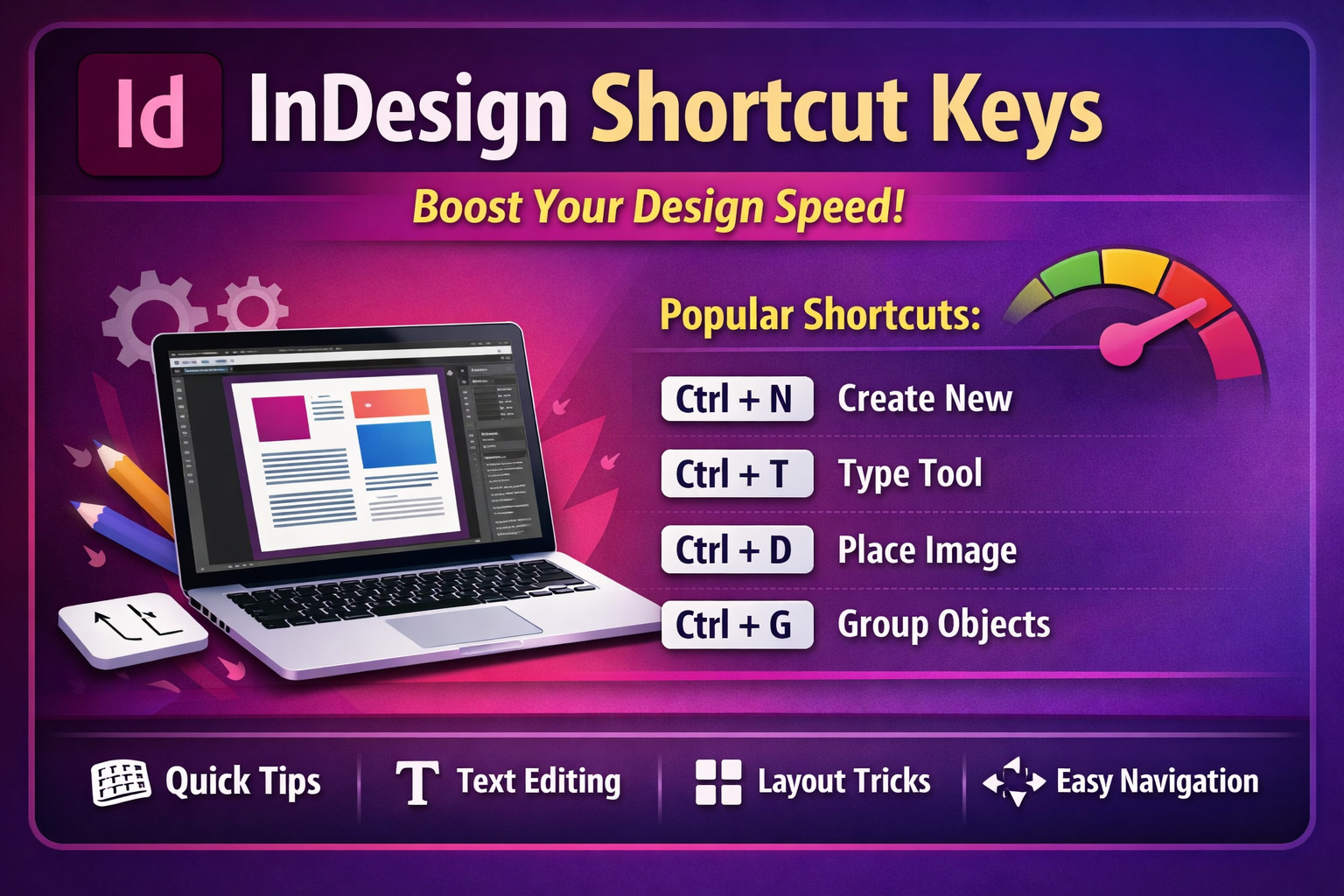
Adobe InDesign Shortcut Keys – Complete List for Faster Workflow
Adobe InDesign is one of the most powerful tools used by designers to create professional layouts for magazines, books, brochures, posters, and digital publications. Developed by Adobe, this software is widely used in the publishing and graphic design industry.adobe photoshop guide
Using keyboard shortcuts in Adobe InDesign can significantly improve productivity. Instead of navigating menus repeatedly, shortcut keys allow designers to perform actions instantly. Whether you are working on page layouts, typography, or image placement, mastering these shortcuts will help you design faster and more efficiently.adobe illustrator tips
This guide lists the most useful Adobe InDesign shortcut keys for Windows users. If you frequently work with publishing projects, learning these shortcuts can save hours of work.
You can also explore the official documentation from Adobe here:
🔗 https://helpx.adobe.com/indesign/using/default-keyboard-shortcuts.html
Essential Adobe InDesign Shortcut Keys
1. File Shortcut Keys
| Shortcut | Function |
|---|---|
| Ctrl + N | Create a new document |
| Ctrl + O | Open existing document |
| Ctrl + S | Save document |
| Ctrl + Shift + S | Save As |
| Ctrl + P | Print document |
| Ctrl + W | Close document |
| Ctrl + Q | Exit InDesign |
2. Selection & Tool Shortcuts
| Shortcut | Tool |
|---|---|
| V | Selection Tool |
| A | Direct Selection Tool |
| T | Type Tool |
| P | Pen Tool |
| F | Frame Tool |
| Z | Zoom Tool |
| H | Hand Tool |
3. Text Editing Shortcuts
| Shortcut | Function |
|---|---|
| Ctrl + C | Copy |
| Ctrl + V | Paste |
| Ctrl + X | Cut |
| Ctrl + A | Select All |
| Ctrl + D | Place image or file |
| Ctrl + Shift + > | Increase font size |
| Ctrl + Shift + < | Decrease font size |
4. Layout & Object Shortcuts
| Shortcut | Function |
|---|---|
| Ctrl + G | Group objects |
| Ctrl + Shift + G | Ungroup objects |
| Ctrl + Shift + ] | Bring to front |
| Ctrl + Shift + [ | Send to back |
| Ctrl + Alt + Shift + V | Paste in place |
5. Navigation Shortcuts
| Shortcut | Function |
|---|---|
| Ctrl + + | Zoom in |
| Ctrl + – | Zoom out |
| Ctrl + 0 | Fit page in window |
| Ctrl + Alt + 0 | Fit spread in window |
6. Useful Page Management Shortcuts
| Shortcut | Function |
|---|---|
| Shift + Page Up | Go to previous page |
| Shift + Page Down | Go to next page |
| Ctrl + Shift + P | Insert new page |
| Ctrl + Alt + Shift + N | New page without dialog |
Why Learning InDesign Shortcuts Is Important
Using shortcut keys can dramatically speed up your workflow when working in Adobe InDesign. Designers who rely on keyboard shortcuts can complete complex layout tasks much faster than those who depend only on mouse navigation.
Benefits include:
- Faster design workflow
- Improved productivity
- Professional efficiency
- Better focus on creativity instead of menu navigation
If you want to become a professional publishing designer, mastering these shortcuts is essential.
Helpful Resources
You can learn more about design tools and shortcuts from these trusted resources:
- Adobe InDesign Official Guide: https://helpx.adobe.com/indesign.html
- Adobe Creative Cloud: https://www.adobe.com/creativecloud.html
- Design Tutorials: https://www.tutsplus.com
Conclusion
Learning Adobe InDesign shortcut keys is one of the easiest ways to improve your productivity as a designer. Whether you are creating magazines, brochures, or digital publications, mastering these shortcuts will help you complete projects faster and with greater efficiency.
Start practicing these shortcuts in your daily workflow and you will quickly notice the difference in your design speed.